Lecture 02: Introduction to statistical programming

ENVX1002 Statistics in Life and Environmental Sciences

Januar Harianto

The University of Sydney

Mar 2026

Learning outcomes

After this week, you will be able to:

  1. Navigate and use the RStudio interface effectively
  2. Execute basic R functions and understand their syntax
  3. Describe measures of central tendency (mean, median, mode) clearly and without mathematical jargon
  4. Describe measures of spread (range, IQR, variance, standard deviation) through practical examples
  5. Calculate and compare statistical measures using R and Excel for biological data

Quick checklist

By now you should have…

History of statistical programming

From calculators to computers

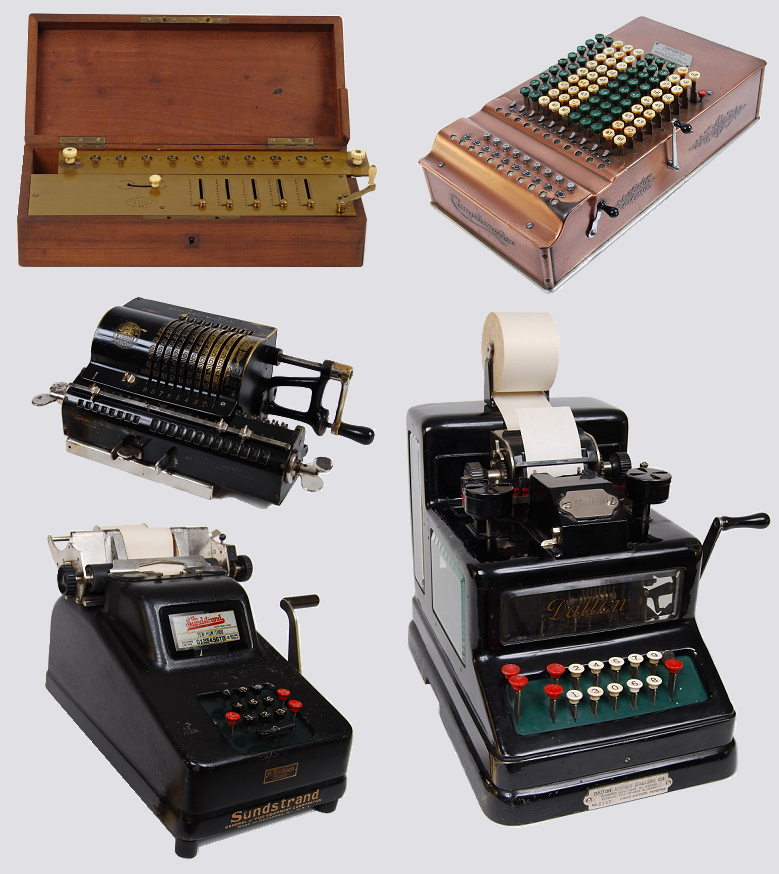
1800s: Mechanical calculators. Source

1800s: Mechanical calculators. Source

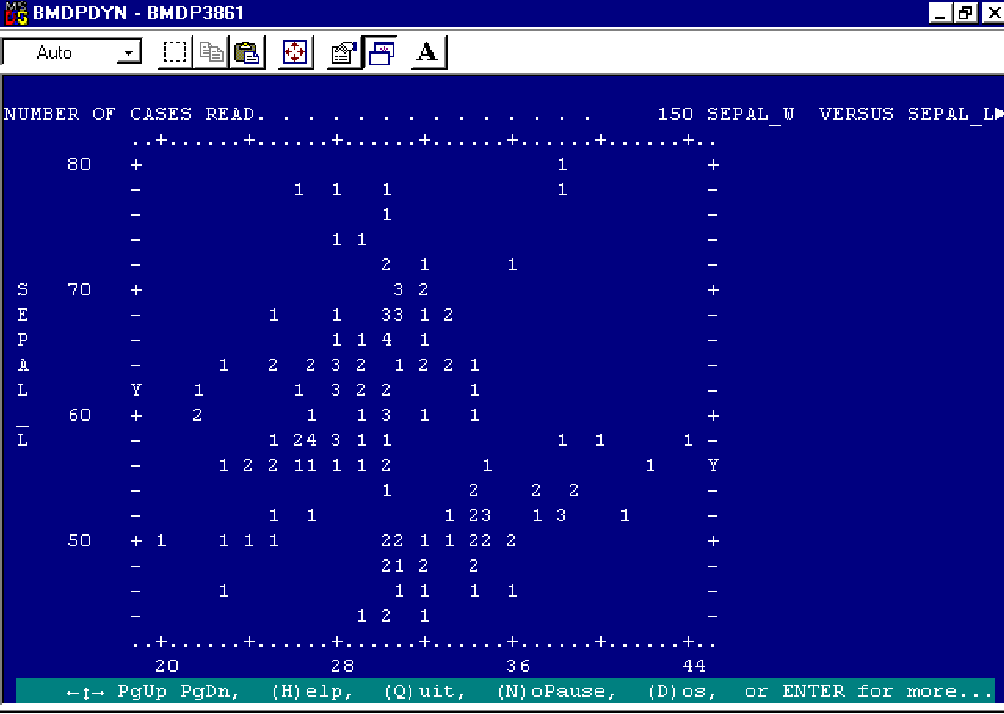
1960s: Statistical software BMDP and SPSS (not in image). Source

1960s: Statistical software BMDP and SPSS (not in image). Source

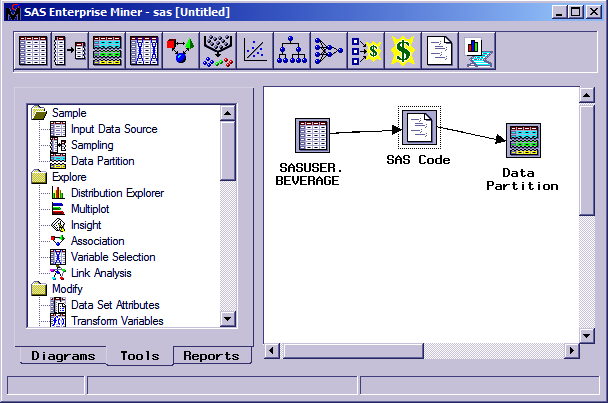
1970s: SAS (Statistical Analysis System) Source

1970s: SAS (Statistical Analysis System) Source

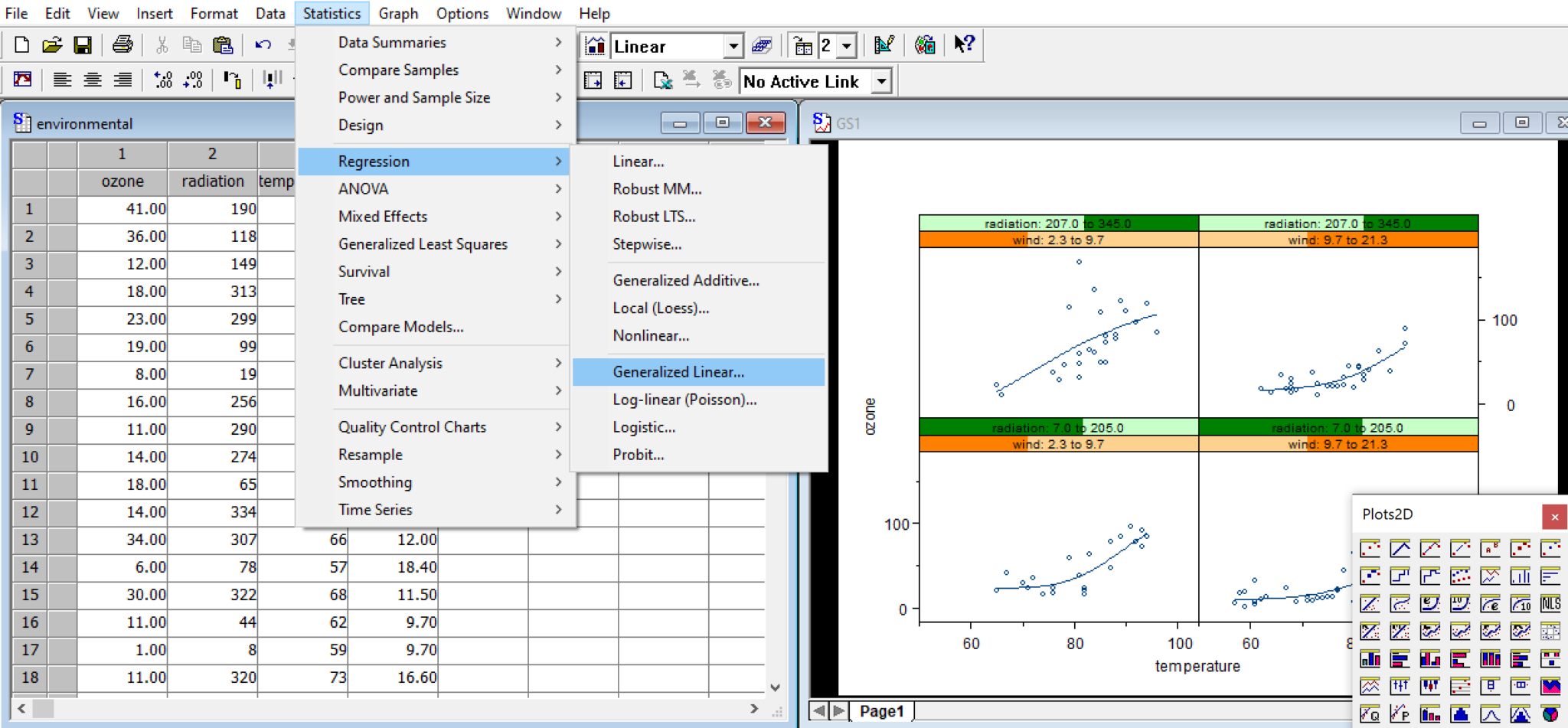
1976: Birth of S at Bell Labs. S-PLUS debuts in 1988. Source

1976: Birth of S at Bell Labs. S-PLUS debuts in 1988. Source

The R story

  • Created at University of Auckland, New Zealand in 1993
  • Named after creators (Ross & Robert) – and inspired by S programming language
  • Designed specifically for statistical computing and graphics, now used in many fields
  • Over 22,000 packages on CRAN – extensive statistical capabilities
  • Supports reproducible research – a key theme in modern science (remember Lecture 01?)

The R story

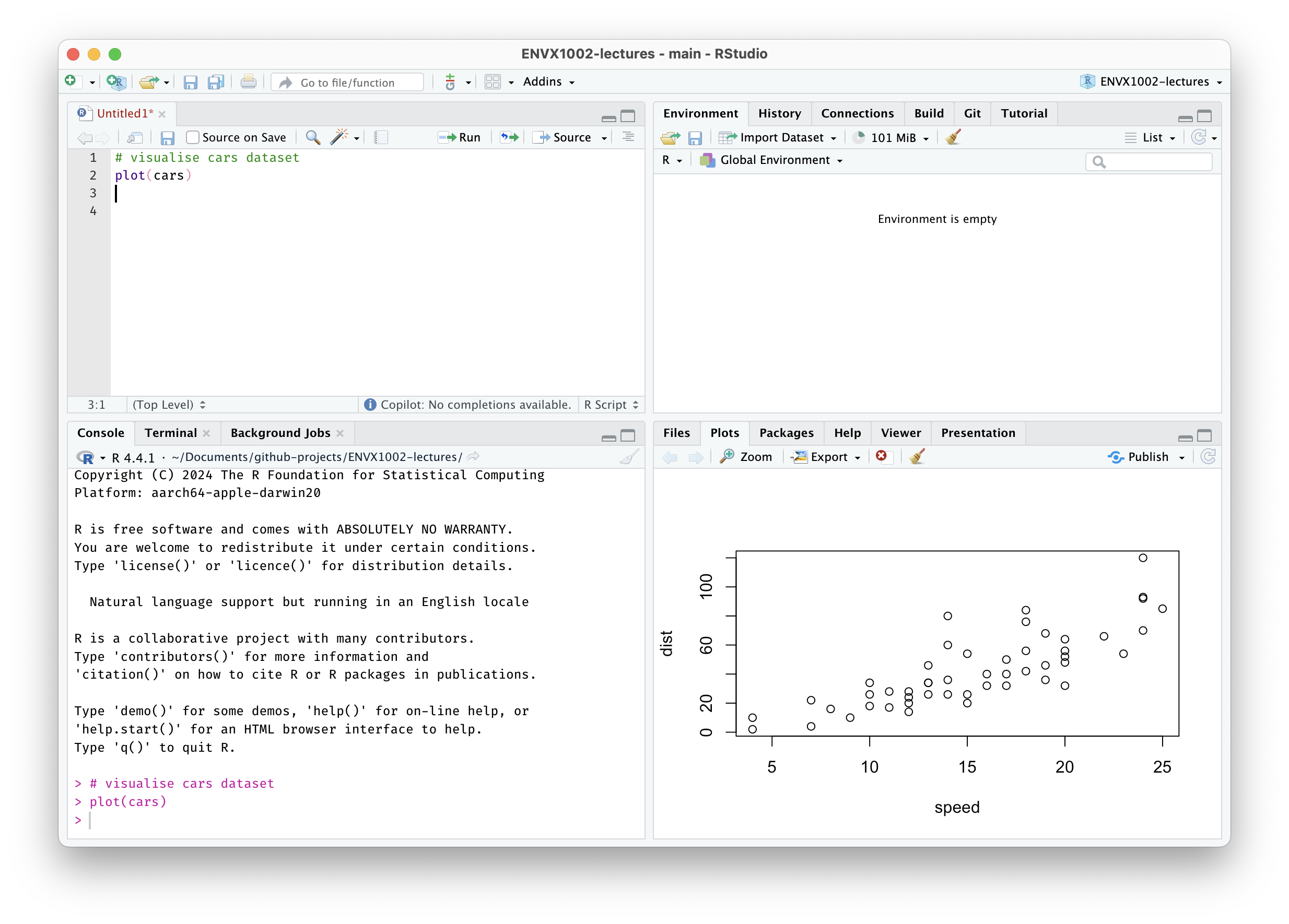
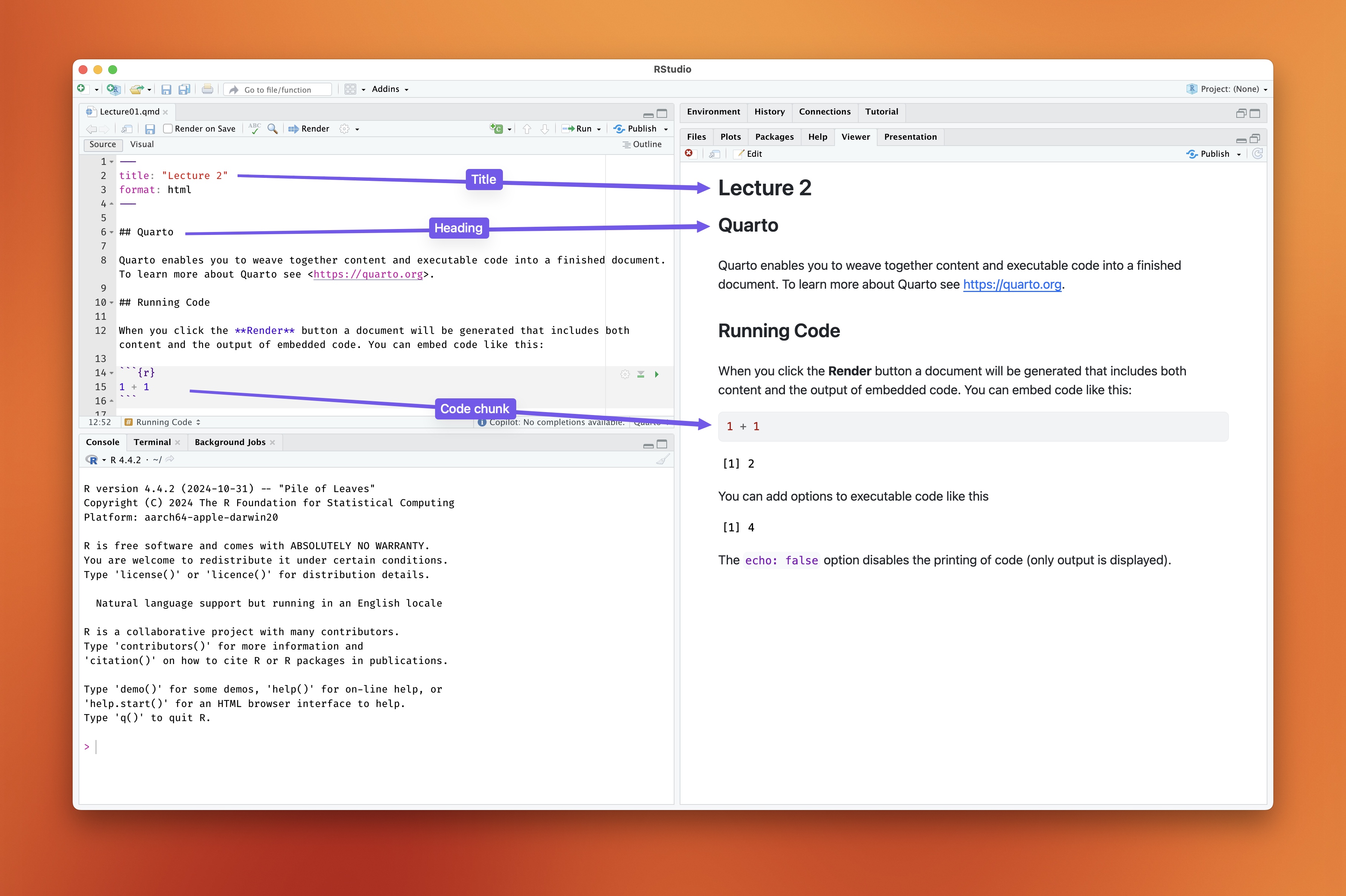
RStudio IDE. Source: Januar Harianto

RStudio IDE. Source: Januar Harianto

Getting Started with R

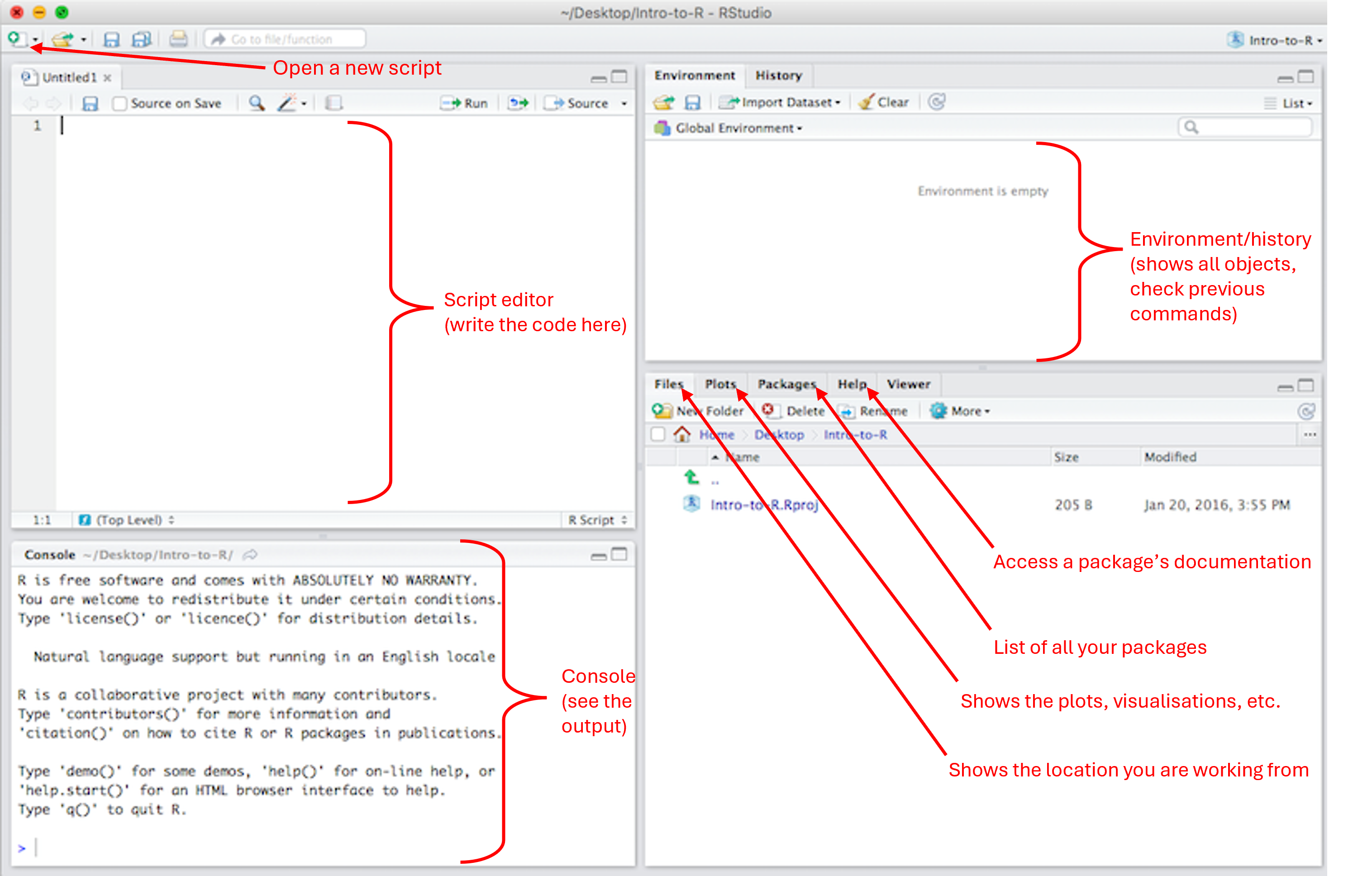
Your RStudio workspace (5 min)

Left: all input, Right: all output

Working in Quarto

  • A Markdown-based authoring tool for reproducible documents
  • Write code and text together, output to HTML, PDF, Word and more
  • Quarto gallery
  • Quick demo (5 min)

Where to find help

  • Read “A brief R guide for surviving ENVX1002” by Dr. Geoffrey Mazue
    • Available in the Tool Kit section on Canvas
    • Contains essential R programming tips and best practices for this unit
  • Use the Help panel in RStudio (bottom-right) – type ?function_name to look up any function

Key statistical concepts

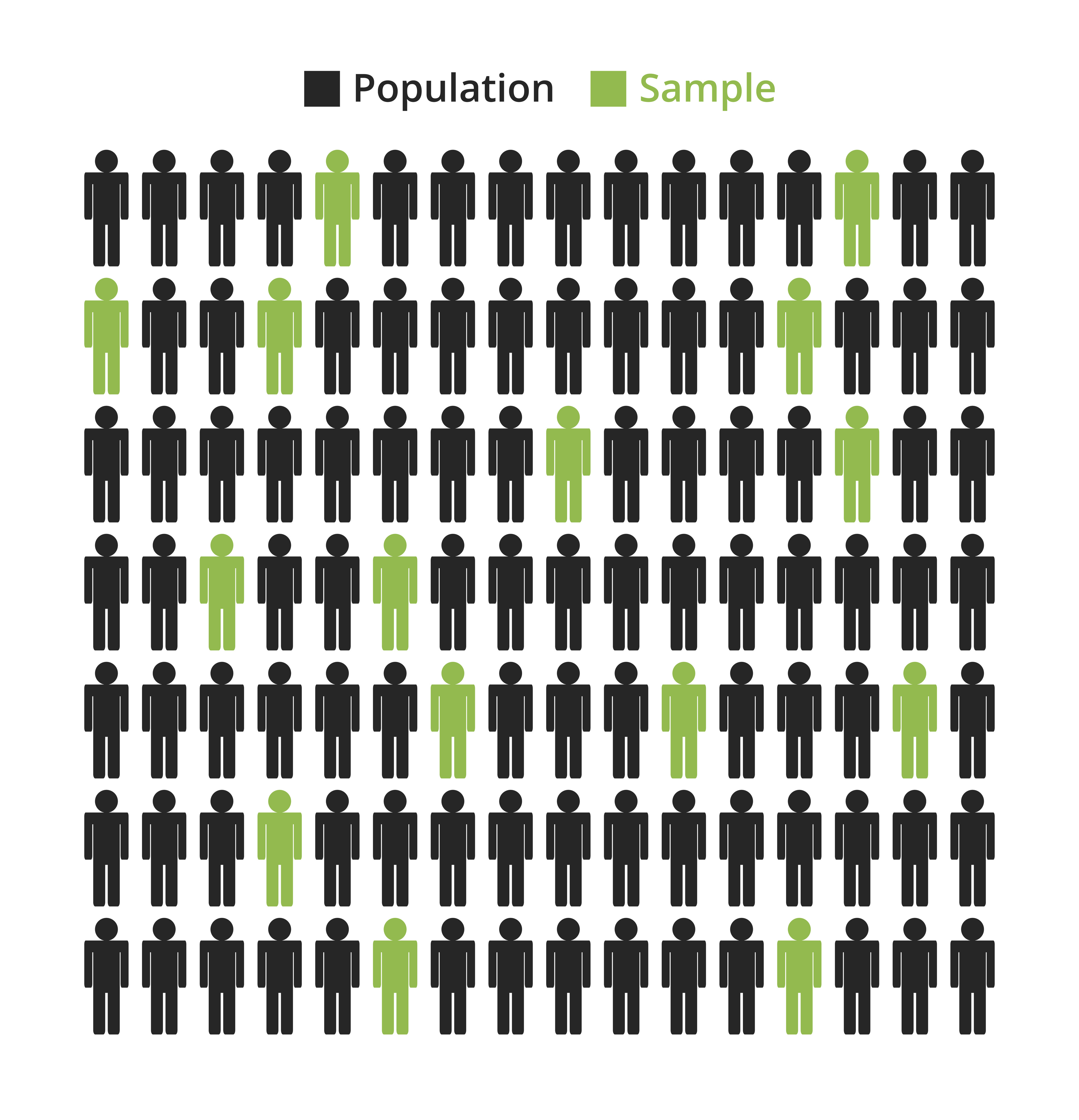
Population vs Sample


Population

  • All possible observations
  • Usually too large to measure
  • Example: All trees in a forest

Sample

  • Subset of the population
  • What we actually measure
  • Example: 100 trees measured in a forest

Most (if not all) statistical analyses are based on samples, not populations. This is why we need descriptive statistics – to summarise what our sample tells us.

Populations and their samples

Population Sample
All koalas in Australia 150 koalas studied in NSW
Every fish in Sydney Harbour 300 fish caught in specific locations
All soil bacteria in a forest Bacteria from 50 soil cores
All cookies in a bakery Tasting 3 cookies to judge quality
All students at the university The 200 students in this course

Each sample is a small piece of a much larger picture.

How well does a sample represent the population?

It depends:

  • Sample size: Larger samples are more likely to represent the population
  • Sampling method: Random samples are more likely to be representative
  • Population variability: More variability means larger samples are needed

We often balance these factors due to time, cost, and practical constraints. We will learn tools for this later – confidence intervals and hypothesis testing.

Samples vary

Different samples give different results – suppose we have a population of 1000 trees and we randomly sample 6 tree heights. If this is done 3 times, it is likely that the samples will be different.

The code below demonstrates this – focus on the results for now:

Code
set.seed(258) 
population <- rnorm(1000, mean = 12, sd = 5)

# create samples
sample1 <- round(sample(population, size = 6), 1)
sample2 <- round(sample(population, size = 6), 1)
sample3 <- round(sample(population, size = 6), 1)
# show samples
for (i in 1:3) {
   cat(sprintf("Sample %d: ", i), get(paste0("sample", i)), "\n")
}
Sample 1:  13.7 14.6 14.8 9.6 6.5 10 
Sample 2:  7.6 6.1 9.9 10.1 12.5 14.9 
Sample 3:  9.8 7.9 18.4 19.1 7 26.1 

Are the samples different? How different are they? This is where descriptive statistics come in.

Descriptive statistics

We use descriptive statistics to summarise and describe data, helping us compare and contrast.

  1. Measures of central tendency – describe the “typical” value in a sample
    • mean, median, mode
  1. Measures of spread – describe how much the data varies
    • standard deviation, variance (commonly used)
    • range, quartiles, IQR (for unique cases)

Data types

Before we calculate any statistics, it helps to know what kind of data we are working with.

Categorical (qualitative)

  • Data that falls into groups or categories
  • Examples: blood type (A, B, AB, O), eye colour, species name
  • Summarised by counts or proportions
  • The mode is the main measure of central tendency

Continuous (quantitative)

  • Data measured on a numeric scale
  • Examples: height (cm), temperature (°C), seagrass length (cm)
  • Summarised by mean, median, standard deviation, etc.
  • Can take any value within a range

Knowing your data type helps you choose the right summary statistic. We will revisit this in more detail in Lecture 03.

That is all for today!

We will continue with measures of central tendency and measures of spread in tomorrow’s session.

Measures of central tendency

Mean – also known as the average

  • Add up all your numbers
  • Divide by how many numbers you have

Mathematical notation

  • Population mean: \(\mu = \frac{\sum_{i=1}^{N} x_i}{N}\)
  • Sample mean: \(\bar{x} = \frac{\sum_{i=1}^{n} x_i}{n}\)

Where \(x_i\) is each individual value, \(N\) is population size, and \(n\) is sample size. Notice how \(\mu\) (population) and \(\bar{x}\) (sample) mirror the population vs sample distinction from earlier.

Do not worry about memorising the formulas – R handles the calculation for us. The important thing is understanding what the mean represents.

Mean in Excel

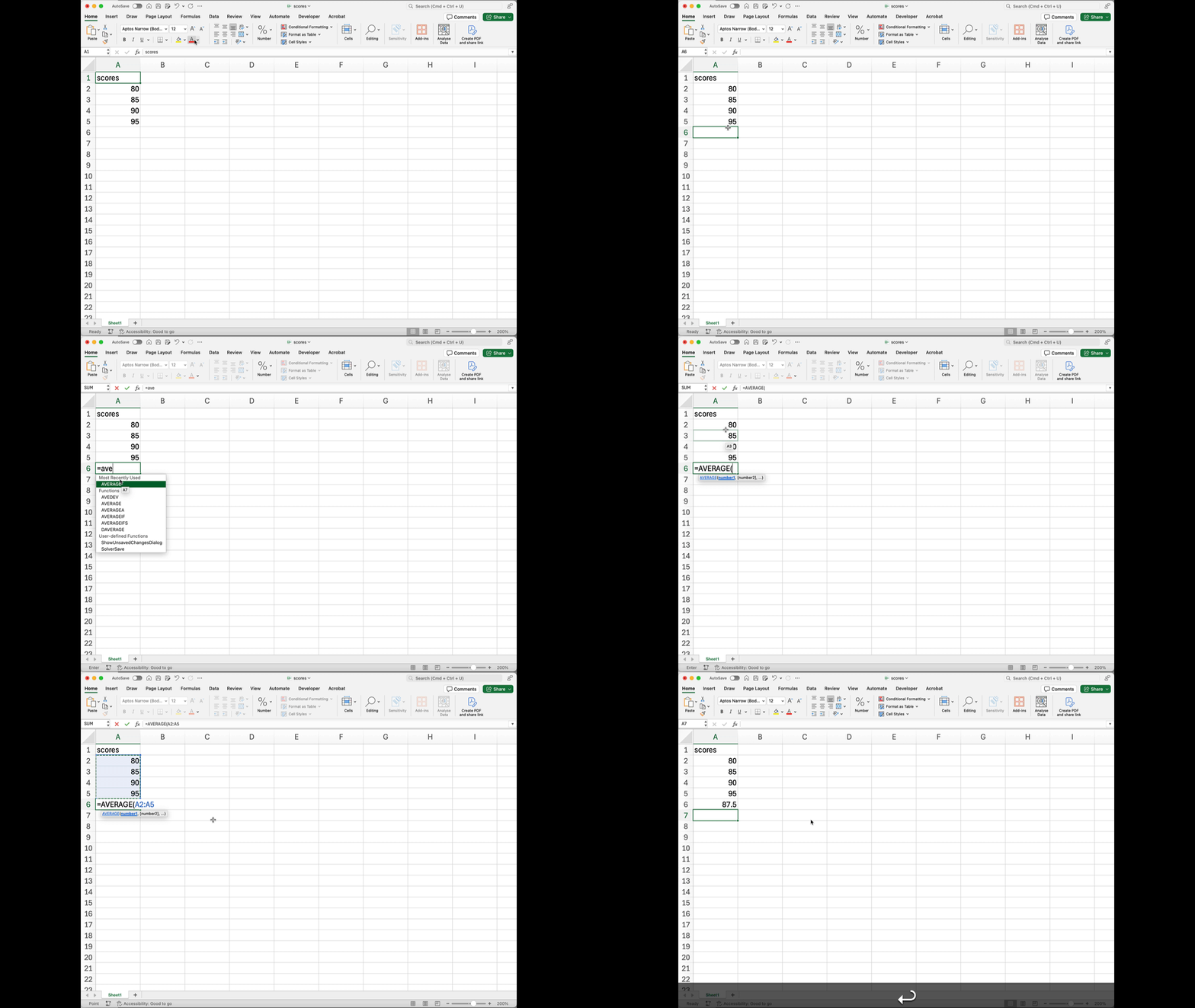
Excel offers several ways to calculate the mean:

  1. Using AVERAGE function

    =AVERAGE(A1:A4)
    • Type =AVERAGE(
    • Select cells with your data
    • Press Enter
  2. Using AutoCalculate

    • Select your data cells
    • Look at bottom right
    • Average shown automatically

Mean in R

I’ll show you how to do this in RStudio.

Step 1: Create a vector of values

In R, we store data in vectors (lists of values):

# Create a vector of test scores
scores <- c(80, 85, 90, 95)

# Display the scores
scores
[1] 80 85 90 95

Step 2: Calculate

Either calculate the mean manually:

# Sum divided by count
sum(scores) / length(scores)
[1] 87.5

Or use the mean() function:

# The mean() function does the work for us
mean(scores)
[1] 87.5

Median – the middle value

The median is the middle number when your data is in order:

  1. First, put your numbers in order
  2. Find the middle value
  3. If you have an even number of values, take the average of the two middle numbers

Example: House prices ($’000s): 450, 1100, 480, 460, 470, 420, 1400, 450, 470

Order: 420, 450, 450, 460, 470, 470, 480, 1100, 1400

The median is not pulled by extreme values (like the two expensive houses at $1,100k and $1,400k), making it a better summary for skewed data.

Median in Excel

Excel provides the MEDIAN function:

=MEDIAN(A1:A9)
  • Type =MEDIAN(
  • Select your data range
  • Press Enter

Median in R

R does all the ordering and finding the middle for us:

# House prices
prices <- c(450, 1100, 480, 460, 470, 420, 1400, 450, 470)

# Find median
median(prices)
[1] 470

Comparing the mean and median:

# Compare with mean
mean(prices)
[1] 633.3333

Which is a better measure for house prices?

Mode – most frequent value

The mode is the value that appears most frequently in your data. It is most useful for:

  • Categorical data (like blood types, species names, eye colours)
  • Finding the most common item in a group

For numerical data, the mean or median is usually preferred. But the mode answers questions that other measures cannot:

  • What is the most common blood type in a population?
  • Which species is most frequently observed at a field site?

Mode in Excel

Excel provides several methods to find the mode but the simplest is to use the MODE function:

=MODE(A1:A10)
  • Type =MODE(
  • Select your data range
  • Press Enter

Mode in R

R does not have a built-in mode function, but there are straightforward ways to find it.

Do it yourself with table():

# Species observed at a field site
species <- c("banksia", "eucalyptus", "banksia", "acacia",
             "eucalyptus", "banksia", "grevillea", "banksia")

# Count how often each species appears
table(species)
species
    acacia    banksia eucalyptus  grevillea 
         1          4          2          1 
# Find the most common species
freq_table <- table(species)
names(freq_table[freq_table == max(freq_table)])
[1] "banksia"

Or use a package:

if(!require("modeest")) install.packages("modeest")
library(modeest)
mlv(species, method = "mfv")  # most frequent value
[1] "banksia"

The point is that when R does not have a built-in function, you can write your own solution or find a package that does the job.

Measures of spread

A biological example

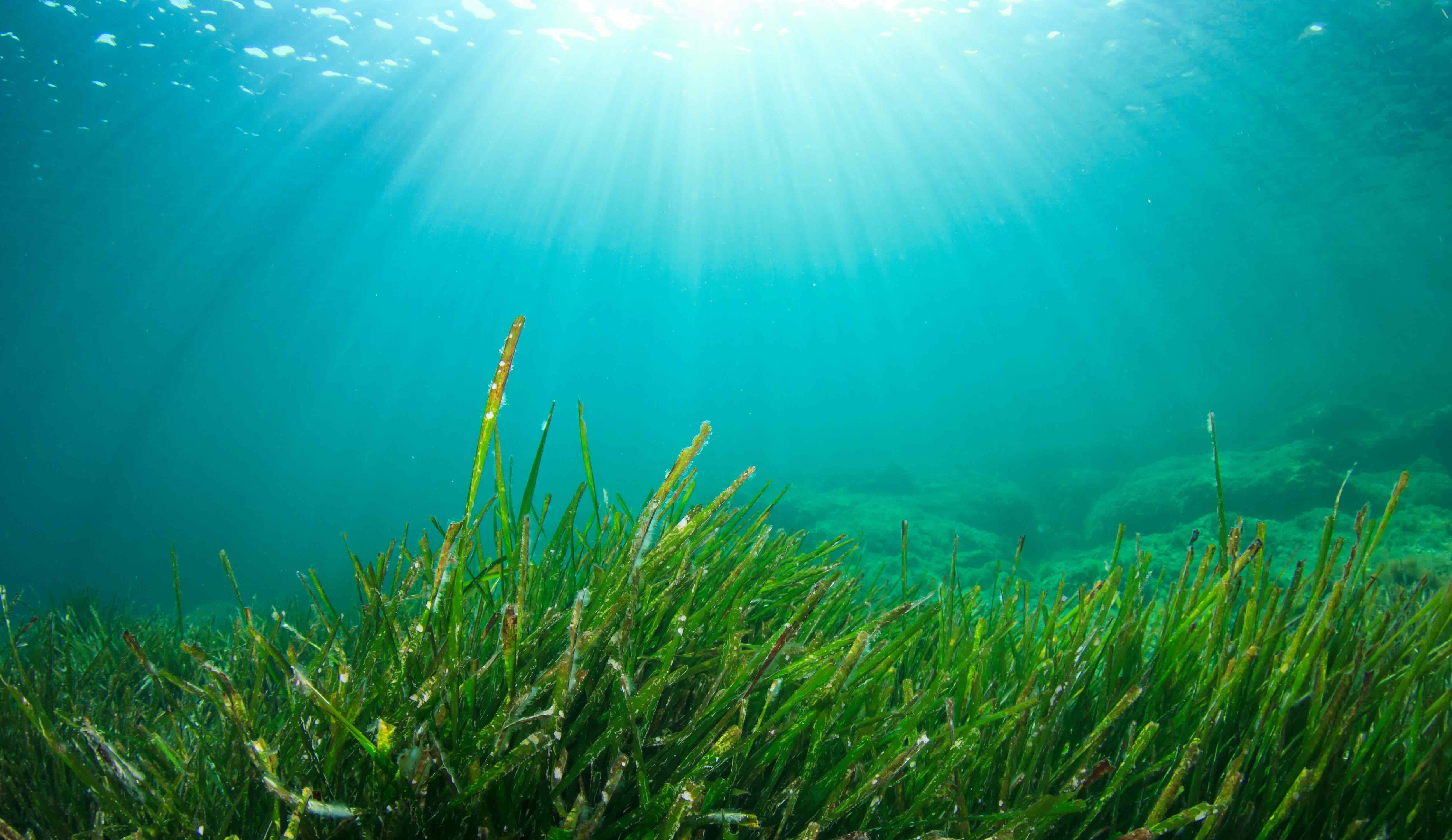
Source: Adobe Stock # 85659279

Source: Adobe Stock # 85659279

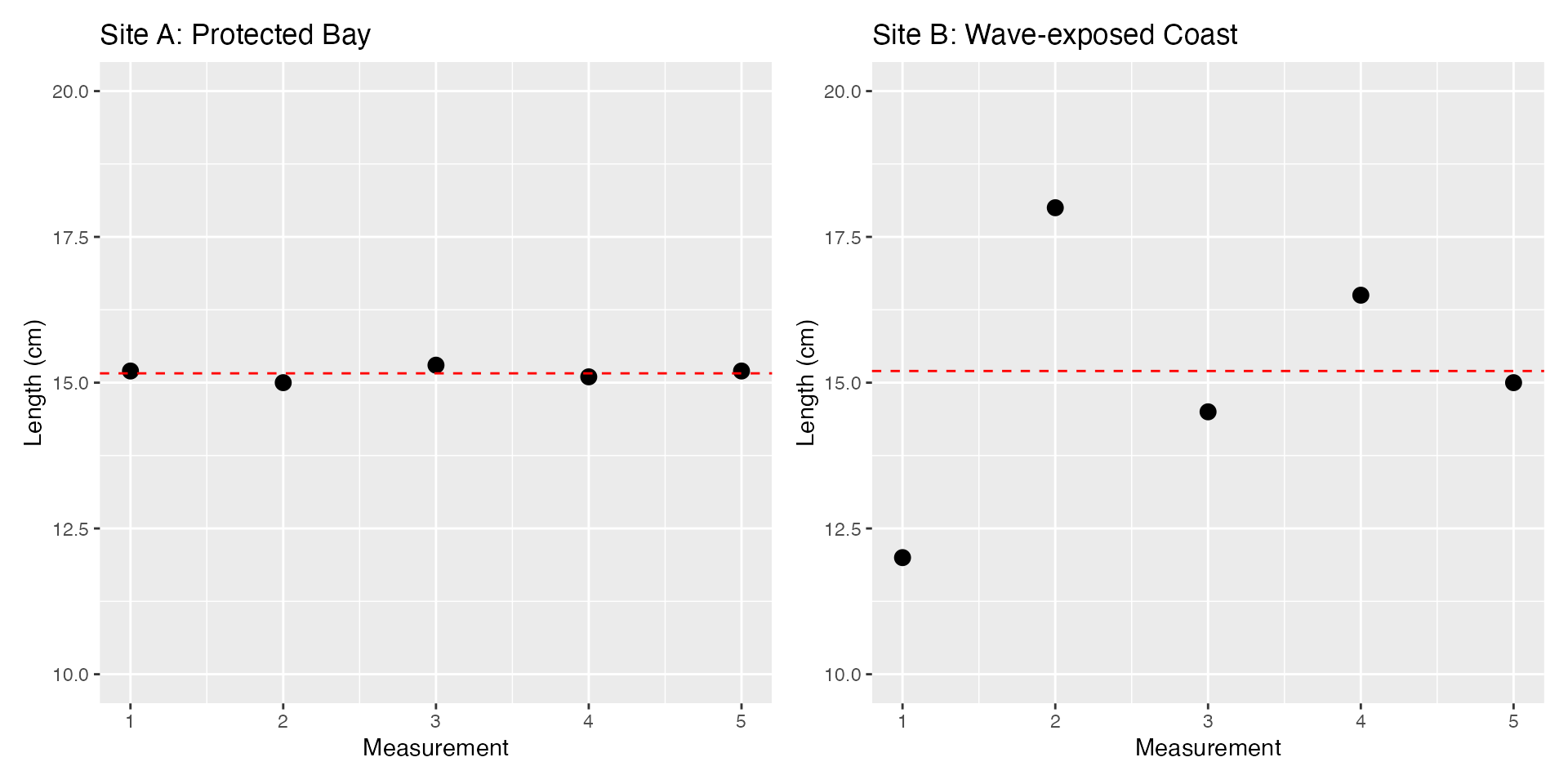
Imagine sampling seagrass blade lengths from two different sites in a marine ecosystem, and they have the same mean length of 15.2 cm. Are both sites the same?

  • Site A (Protected Bay): 15.2, 15.0, 15.3, 15.1, 15.2 centimetres
  • Site B (Wave-exposed Coast): 12.0, 18.0, 14.5, 16.5, 15.0 centimetres

Comparing Different Measures

Code
# Plot seagrass lengths
library(ggplot2)
library(patchwork)

seagrass_protected <- c(15.2, 15.0, 15.3, 15.1, 15.2)
seagrass_exposed <- c(12.0, 18.0, 14.5, 16.5, 15.0)

# Create plots for both sites
p1 <- ggplot() +
   geom_point(aes(x = 1:5, y = seagrass_protected), size = 3) +
   geom_hline(yintercept = mean(seagrass_protected), linetype = "dashed", color = "red") +
   labs(title = "Site A: Protected Bay", x = "Measurement", y = "Length (cm)") +
   ylim(10, 20)

p2 <- ggplot() +
   geom_point(aes(x = 1:5, y = seagrass_exposed), size = 3) +
   geom_hline(yintercept = mean(seagrass_exposed), linetype = "dashed", color = "red") +
   labs(title = "Site B: Wave-exposed Coast", x = "Measurement", y = "Length (cm)") +
   ylim(10, 20)

# Combine plots side by side
p1 + p2
Why do we need measures of spread?

  • Central tendency (mean, median, mode) only tells part of the story
  • Spread tells us how much variation exists in our data
  • Range: Overall spread of data
  • IQR: Spread of middle 50% of data
  • Variance: Average squared deviation from mean
  • Standard deviation: Average deviation in original units

Range – The simplest measure of spread

# Create our seagrass data
seagrass_protected <- c(15.2, 15.0, 15.3, 15.1, 15.2)  # Protected bay
seagrass_exposed <- c(12.0, 18.0, 14.5, 16.5, 15.0)    # Wave-exposed coast

# Calculate ranges
cat("Protected bay range:", diff(range(seagrass_protected)), "cm\n")
Protected bay range: 0.3 cm
cat("Wave-exposed range:", diff(range(seagrass_exposed)), "cm\n")
Wave-exposed range: 6 cm

The range shows us that seagrass lengths are much more variable in the wave-exposed site!

Range in Excel

Use MAX() and MIN() to calculate the range:

=MAX(A1:A10) - MIN(A1:A10)

Interquartile range (IQR): The middle 50%

The IQR tells us how spread out the middle 50% of our data is:

# Get quartiles for protected bay
quantile(seagrass_protected)
  0%  25%  50%  75% 100% 
15.0 15.1 15.2 15.2 15.3 
  • 25% of data below Q1 (1st quartile)
  • 75% of data below Q3 (3rd quartile)
  • IQR = Q3 - Q1

Why use IQR?

  • Ignores extreme values
  • Works with skewed data
  • Less affected by extreme values than the range

Comparing Sites Using IQR

# Compare IQRs
pbay <- IQR(seagrass_protected)
pbay
[1] 0.1
exbay <- IQR(seagrass_exposed)
exbay
[1] 2
  • Protected bay IQR: 0.1 cm
  • Wave-exposed IQR: 2 cm

The larger IQR in the wave-exposed site shows more spread in the typical seagrass lengths.

IQR in Excel

Use QUARTILE.INC() to find the IQR:

For Q1: =QUARTILE.INC(A1:A10, 1)
For Q3: =QUARTILE.INC(A1:A10, 3)
For IQR: =QUARTILE.INC(A1:A10, 3) - QUARTILE.INC(A1:A10, 1)

Variance: a detailed measure of spread

Variance measures how far data points are spread from their mean by:

  1. Finding how far each point is from the mean
  2. Squaring these distances (to handle negative values)
  3. Taking the average of these squared distances

Why use variance?

  • Uses all data points (unlike IQR)
  • Squaring amplifies the effect of extreme values, making outliers stand out
  • Shows total spread in both directions

Key points

  • Measured in squared units (cm²)
  • Larger variance = more spread

Calculating Variance in R

Code
# Calculate variance for both sites
cat("Protected bay variance:", var(seagrass_protected), "cm²\n")
Protected bay variance: 0.013 cm²
Code
cat("Wave-exposed variance:", var(seagrass_exposed), "cm²\n")
Wave-exposed variance: 5.075 cm²

The larger variance in the wave-exposed site shows more spread from the mean!

Variance in Excel

Use VAR.S() to calculate the sample variance:

=VAR.S(A1:A10)

For now, always use .S (sample) in this course.

Standard deviation: a more interpretable measure

Standard deviation (SD, or \(\sigma\) for population, \(s\) for sample) is the square root of variance:

  • Tells us the “typical distance” from the mean
  • Easy to understand – similar to saying “± value” after a mean
  • Small SD means values cluster closely around mean
  • Larger SD values mean values are more spread out

When and why to use it

  • Values are in the same units as your data (unlike variance)
  • Perfect for describing natural variation (height, weight, temperature)
  • Used in many statistical tests
  • Great for comparing different groups or datasets

Interpreting standard deviation (with R)

We can describe our seagrass lengths using mean ± standard deviation:

# Protected bay
mean_p <- mean(seagrass_protected)
sd_p <- sd(seagrass_protected)
cat("Protected bay:", round(mean_p, 1), "±", round(sd_p, 2), "cm\n")
Protected bay: 15.2 ± 0.11 cm
# Wave-exposed
mean_e <- mean(seagrass_exposed)
sd_e <- sd(seagrass_exposed)
cat("Wave-exposed:", round(mean_e, 1), "±", round(sd_e, 2), "cm\n")
Wave-exposed: 15.2 ± 2.25 cm

The ± tells us about the typical variation around the mean. Larger SD values indicate more spread!

SD in Excel

Use STDEV.S() to calculate the sample standard deviation:

=STDEV.S(A1:A10)

For now, always use .S (sample) in this course.

Comparing spread measures

Measure Protected Bay Wave-exposed Coast What it Tells Us
Range 0.3 cm 6 cm Overall spread (sensitive to outliers)
IQR 0.1 cm 2 cm Middle 50% spread (ignores extremes)
Variance 0.01 cm² 5.07 cm² Average squared distance from mean
SD 0.11 cm 2.25 cm Average distance from mean (in original units)

Key Observations

  • Wave-exposed site shows consistently more variation
  • Each measure gives a different perspective
  • Choose based on your data and goals
  • Standard deviation is most commonly used in research papers

References and Resources

Core Reading

Read after the lecture:

  • Quinn & Keough (2024). Experimental Design and Data Analysis for Biologists. Cambridge University Press. Chapter 2: Things to know before proceeding.
  • Canvas site for lecture notes and additional resources

Thanks!

This presentation is based on the SOLES Quarto reveal.js template and is licensed under a Creative Commons Attribution 4.0 International License.